

The fastest way to transfer photos from an Android phone to a computer is to connect it with a USB-C cable, tap the “Charging this device via USB” notification, select File Transfer (MTP), then drag photos from Internal Storage › DCIM › Camera to any folder on your PC. That single method moves thousands of images in minutes and works on every Windows or Mac machine without installing a thing.
But USB isn’t always the best choice. After moving photos off dozens of Android phones over the years — Pixels, Galaxies, OnePlus, Xiaomi — I’ve found the right method depends on how many photos you have, whether you own the right cable, and whether you’re on Windows, Mac, or Chromebook. This guide walks through every reliable method in 2026, the exact steps, what to do when something breaks, and which approach fits your situation.
What’s the Easiest Way to Transfer Photos from Android to a Computer?
The easiest way is a USB cable for large transfers and Quick Share (Windows) or Google Photos (Mac/any OS) for quick wireless transfers. USB wins on speed and reliability for full backups. USB transfers original files — full resolution, original EXIF metadata, RAW formats if your phone shoots them.
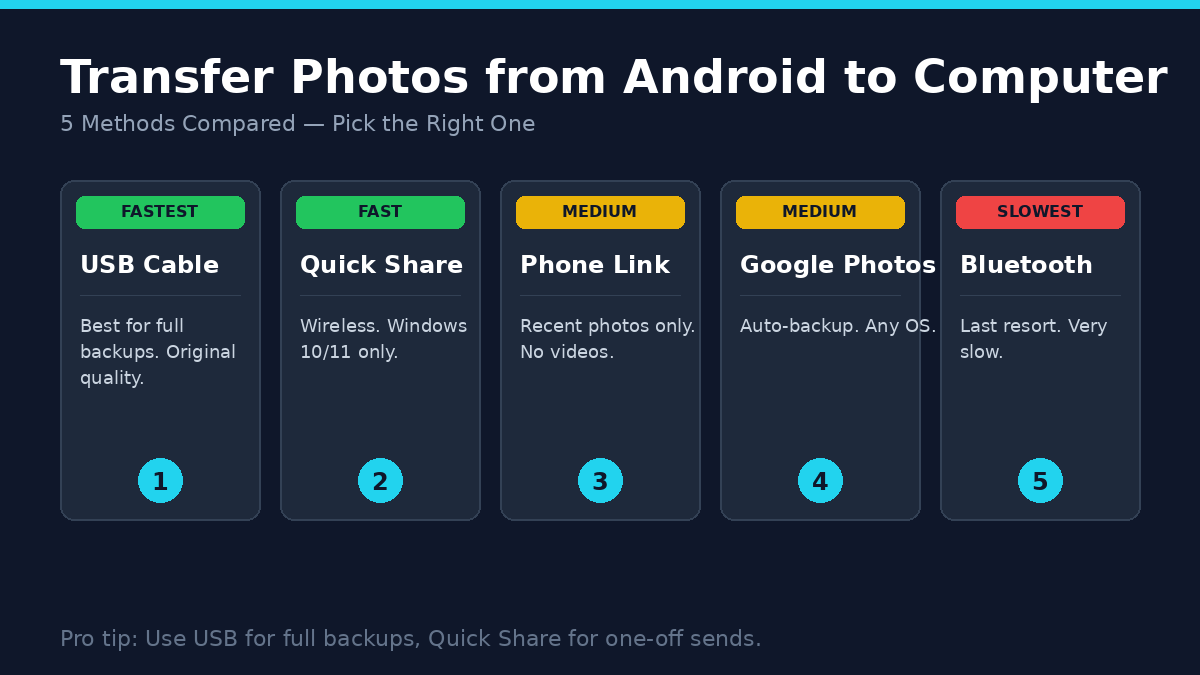
Here’s how the methods compare at a glance:
| Method | Speed | Cable Needed | Works On | Best For |
|---|---|---|---|---|
| USB cable (MTP) | Fastest | Yes | Windows, Mac, Linux | Full backups, 1000+ photos |
| Quick Share | Fast | No | Windows 10/11 (64-bit) | 1–50 photos, no cable |
| Microsoft Phone Link | Medium | No | Windows 10/11 | Recent camera photos only |
| Google Photos | Medium | No | Any OS with browser | Auto-backup, cross-device access |
| Bluetooth | Slowest | No | Any OS | 1–5 small photos, last resort |
| Email / Cloud (Drive, Dropbox) | Medium | No | Any OS | Single photos, sharing |
The rest of this guide covers each method in detail, plus what to do when your computer doesn’t detect the phone.
How Do I Transfer Photos from Android to Windows or Mac with a USB Cable?
Connect the phone with a USB cable, switch the USB mode to File Transfer, open the phone in File Explorer (Windows) or Android File Transfer (Mac), and copy the DCIM/Camera folder. This is the most reliable method and doesn’t depend on Wi-Fi, cloud accounts, or app updates.
Step-by-step on Windows 10 or 11
- Plug one end of a USB-C (or micro-USB) cable into the phone and the other into a USB port on your PC. Use a cable that supports data — many cheap cables only carry power.
- Unlock the phone. Windows can’t see a locked device.
- Pull down the notification shade. Tap the notification that says Charging this device via USB (or similar).
- Under Use USB for, select File Transfer or MTP. Photo Transfer (PTP) also works but shows fewer folders.
- On your PC, press Windows key + E to open File Explorer.
- Under This PC, you’ll see the phone name (e.g., “Pixel 8” or “Galaxy S24”). Double-click it.
- Open Internal shared storage › DCIM › Camera. This is where the camera app saves photos.
- Select photos (Ctrl+A for all, or click + Shift-click for a range), then drag them to a folder on your PC. Or copy with Ctrl+C and paste with Ctrl+V.
The transfer time depends on the photos. In my testing, a Pixel 8 moves about 4–5 GB of photos (roughly 1,000 high-res JPEGs) to a Windows 11 laptop in 8–10 minutes over a USB 3.1 cable.
Step-by-step on macOS
Apple doesn’t natively support Android over USB, so you’ll need a helper app:
- On your Mac, download Android File Transfer from
android.com/filetransferand install it. It’s free and made by Google. - Connect the Android phone with a USB cable.
- Unlock the phone and switch USB mode to File Transfer (same notification-tap steps as above).
- Android File Transfer should open automatically. If not, launch it from Applications.
- Navigate to DCIM › Camera, select photos, and drag them to a folder on your Mac (Desktop or Pictures).
If Android File Transfer hangs or won’t open the device, try the OpenMTP app instead — it’s a free open-source alternative that handles large transfers better on newer macOS versions.
Why USB is still the best option for full backups
Wireless methods compress photos or limit batch size. USB transfers original files — full resolution, original EXIF metadata, RAW formats if your phone shoots them. For anyone moving a year’s worth of photos before resetting a phone, USB is the only method I trust completely.
How Do I Transfer Photos from Android to PC Wirelessly with Quick Share?
Install Quick Share for Windows from android.com/quick-share, sign in with the same Google account on both devices, then select photos on your phone and share them to the PC. Quick Share works on Windows 10/11 64-bit, with Wi-Fi and Bluetooth enabled on both devices. No cable, no extra account setup, and transfer speeds are surprisingly fast for nearby devices.
Setting up Quick Share
- On your Windows PC, go to
android.com/quick-shareand download the installer. Run it and sign in with your Google account. - Enable Wi-Fi and Bluetooth on the PC. Quick Share uses both — Bluetooth to discover devices, Wi-Fi Direct to actually move files.
- On your Android phone (Android 6 or newer), Quick Share is already installed. Sign in with the same Google account if you haven’t already.
- Set visibility to Everyone or Your devices under Quick Share settings on the phone.
Sending photos
- Open the Gallery or Google Photos app on the phone.
- Select photos (long-press the first one, tap others to add).
- Tap Share, then Quick Share.
- Your PC’s name appears in the device list. Tap it.
- On the PC, a notification asks you to accept the transfer. Click Accept.
- Photos save to
Downloads › Quick Shareby default. You can change the destination in Quick Share settings.
In my testing on a Galaxy S24 and a Windows 11 laptop on the same Wi-Fi network, 20 photos (about 80 MB total) transferred in under 30 seconds. For batches under 100 photos, Quick Share is genuinely faster than connecting a cable.
When Quick Share doesn’t work
If the PC doesn’t appear, check that both devices are on the same Wi-Fi network, Bluetooth is on, and Location is enabled on the phone. If Quick Share shows “device not supported” or fails to work, ensure both devices have Bluetooth, Wi-Fi, and Location enabled and are within close proximity. Samsung users on Samsung PCs should install Quick Share from Samsung in the Microsoft Store instead — Google’s version isn’t supported there anymore.
How Do I Use Microsoft Phone Link to Transfer Photos?
Install Phone Link on your Windows PC and Link to Windows on your Android phone, pair them through a QR code, then access recent camera photos directly from the PC. Phone Link requires an Android phone with Android OS 7.0 or newer and only shows recent photos — it doesn’t import videos or older albums.
Setup steps
- On your PC, open the Phone Link app (pre-installed on Windows 11; download from Microsoft Store on Windows 10).
- Select Android as the phone type. The PC shows a QR code.
- On your phone, install Link to Windows from the Play Store, open it, and scan the QR code.
- Grant the permissions Phone Link requests — contacts, SMS, photos, notifications.
- Once paired, click Photos in the Phone Link sidebar on your PC. Your phone’s recent camera and screenshot photos appear.
When to use Phone Link
Phone Link is best for grabbing one or two recent photos without picking up the phone — say, you took a screenshot on your phone and need it in a document right now. It’s not built for full library transfers. For that, USB or Google Photos handles it better.
How Do I Transfer Photos Using Google Photos or Cloud Storage?
Turn on Backup in the Google Photos app on your phone, wait for photos to sync (Wi-Fi recommended), then open photos.google.com on your computer and download what you need. This method works on any OS — Windows, Mac, Chromebook, Linux — because it runs in any browser.
Google Photos backup
- Open the Google Photos app on your Android phone.
- Tap your profile picture › Photos settings › Backup.
- Toggle Backup on. Choose Original quality for full-resolution backups (counts against your 15 GB Google account storage) or Storage saver for slightly compressed versions.
- Connect to Wi-Fi. Backup runs in the background.
- On your computer, open a browser and go to
photos.google.com. Sign in with the same Google account. - Select photos, click the three-dot menu, and choose Download. Or download an entire album as a ZIP file.
Other cloud options
OneDrive and Dropbox work the same way — install the Android app, turn on Camera Upload, and download from the web on the computer. OneDrive is convenient if you already pay for Microsoft 365 (you get 1 TB).
Google Drive is fine for one-off photo uploads but not designed for full backups. Use Google Photos instead.
Cloud transfers cost time on the upload side, but once your library is in the cloud, accessing photos from any device is effortless.
How Do I Transfer Photos from Android to Computer Using Bluetooth?
Pair the phone with the PC over Bluetooth, then send each photo using the Share menu on the phone and accept the transfer on the PC. Bluetooth works on every device but is painfully slow — expect 30–60 seconds per photo. Use it only when no other method is available.
- On the PC, open Settings › Bluetooth & devices, click Add device, and pair with the phone when it appears.
- On the phone, accept the pairing prompt.
- Open Gallery, select a photo, tap Share › Bluetooth, and pick the PC.
- On the PC, accept the incoming file. It saves to
Downloadsby default.
Bluetooth is my last resort. If I’ve forgotten my USB cable, the office Wi-Fi is restricted, and I only need to send a single photo, Bluetooth gets it done. For anything more, switch methods.
Common Mistakes That Stop Android-to-PC Transfers
Most failed transfers come from cable issues, wrong USB modes, or driver problems. Here are the mistakes I see most often, and how to fix each one.
Using a charge-only cable
Not every USB cable transfers data. Cheap cables that came with off-brand chargers often have only the power wires connected. If your PC doesn’t detect the phone at all, swap the cable for the one that came in the phone’s box — those almost always support data.
Leaving the phone locked
Windows can’t see the phone’s storage when the screen is locked. If the device is locked, your PC can’t find the device. Unlock it before plugging in, or unlock and then re-plug.
Forgetting to switch USB mode
By default, most Android phones connect in Charging only mode. You won’t see any files until you tap the notification and switch to File Transfer or MTP. This catches almost everyone the first time.
Outdated USB drivers (Windows)
If your PC sees the phone but shows it as “Unknown device” or refuses to open it, the MTP driver is missing or stale. Open Device Manager, find the phone under Portable Devices or Other devices, right-click, and choose Update driver › Search automatically. For Samsung phones, install Samsung USB Driver directly from Samsung’s developer site.
Trying to transfer over a slow USB port
Old USB 2.0 ports max out around 35 MB/s. If transfers feel sluggish, use a USB 3.0 or 3.1 port — usually marked blue inside, or labeled “SS” (SuperSpeed) on the laptop.
Assuming “wireless” means “no setup”
Wireless methods need the right network setup. Quick Share won’t work between devices on different Wi-Fi networks, and Phone Link needs both devices signed in to the same Microsoft account. Verify the basics before troubleshooting more deeply.
How to Pick the Right Method for Your Situation
The best transfer method depends on three things: how many photos you have, whether you’re doing this once or regularly, and what OS your computer runs.
- Moving everything before a phone reset? USB cable. No compression, no compromises.
- Sending a few photos right now? Quick Share (Windows) or AirDrop alternative apps like LocalSend (any OS).
- Want photos available on every device, all the time? Google Photos with backup on. Set and forget.
- On a Mac? Android File Transfer for USB, or Google Photos for wireless. Quick Share doesn’t run on Mac.
- Chromebook user? Plug in over USB — ChromeOS handles Android phones natively in the Files app. No setup needed.
For most people moving a year of photos for the first time, I recommend USB for the initial dump, then turning on Google Photos backup going forward. You get a clean local archive plus automatic cloud sync.
Frequently Asked Questions
How do I transfer photos from Android to PC without a USB cable?
Use Quick Share (Windows 10/11) or Google Photos (any OS). Quick Share moves files over Wi-Fi Direct between devices signed into the same Google account — fast and no upload step. Google Photos backs up automatically to the cloud, then you download what you need from photos.google.com on your PC.
Why won’t my Android phone show up on my computer?
The most common causes are: phone is locked, USB mode is set to charging only, the cable doesn’t support data, or USB drivers are missing on Windows. Unlock the phone, tap the USB notification and choose File Transfer, swap to a known-good cable, and reinstall MTP drivers via Device Manager if needed.
How do I transfer photos from Samsung Galaxy to PC?
Samsung phones support all standard methods plus Samsung Smart Switch, which copies photos, contacts, and other data in one go. Smart Switch can copy all of your data, including photos, from your old device. For one-time transfers, USB or Quick Share is faster. Use Smart Switch only when moving to a new Samsung phone or doing a full PC backup.
Can I transfer photos from Android to Mac without an app?
Not directly — macOS doesn’t read Android storage natively over USB. You need Android File Transfer (free from Google) or OpenMTP (free open-source). Alternatively, skip USB entirely and use Google Photos in any Mac browser. AirDrop doesn’t work between Android and Mac.
How long does it take to transfer 1,000 photos from Android to PC?
Over a USB 3.0 cable, expect 8–15 minutes for 1,000 photos (roughly 4–5 GB at modern phone resolutions). USB 2.0 takes about 20–30 minutes. Quick Share over Wi-Fi runs at similar speeds to USB 2.0 for batches under a few hundred photos. Cloud upload speeds depend entirely on your home internet upload bandwidth.
Will transferring photos delete them from my phone?
No — copying photos to your computer leaves the originals untouched on the phone. To free space on the phone after transferring, you have to delete them manually from the Gallery or Google Photos app. Always verify the transfer completed and files open correctly before deleting anything.
What’s the safest way to transfer photos I don’t want to lose?
USB transfer to a local folder, then a second copy to an external drive or cloud backup. The “3-2-1 rule” applies: three copies of the photos, on two different storage types, with one offsite (cloud counts as offsite). For irreplaceable photos — family events, weddings, travel — never rely on a single copy or a single method.
Do I need special software for Windows 11?
No. Windows 11 handles Android phones natively through File Explorer for USB transfers, and the built-in Photos app can import directly from a connected phone. Phone Link comes pre-installed for wireless transfers. Most people don’t need to download anything extra.
The Bottom Line
For a one-time transfer of your entire photo library, plug in a USB cable, switch to File Transfer mode, and drag the DCIM/Camera folder to your PC. It’s faster than any wireless method, works without setup, and gives you the original files at full quality.
For ongoing transfers — the photo you took five minutes ago that needs to be in a document right now — Quick Share on Windows or Google Photos on any OS handles it in seconds. Set up one of them today so you’re not hunting for cables next time.
Whatever method you pick, verify the transfer worked before deleting anything from the phone. Open a few photos on the computer. Check the file count matches. Then back up the local copy to an external drive or cloud — single copies aren’t backups.
If a specific step here didn’t work for your device, the cable, USB mode, or driver is almost always the cause. Walk through the Common Mistakes section and you’ll find the fix.
Disclaimer: This guide is based on personal experience and general recommendations, and results may vary depending on your specific Android device, computer model, cable quality, and operating system version. We are not responsible for any data loss, corruption, or accidental deletion that may occur during the transfer process—always back up your important photos before proceeding. Third-party apps like Quick Share, Android File Transfer, and Phone Link are subject to updates by their developers, and compatibility is not guaranteed across all devices. It is your sole responsibility to ensure you have the legal right to transfer images and to follow security best practices when using wireless or cloud-based methods. The information is provided “as is” without any warranties, and we assume no liability for any issues, damages, or losses arising from the use of this guide.
Get inspired by thought-provoking articles—find real gems and clever shortcuts inside.
