








Introduction
Locked out of your own iPhone is a special kind of frustrating. Maybe you forgot the passcode, inherited a second-hand device, or got caught in a loop of wrong entries that disabled the phone entirely. Whatever happened, you’re here — and there’s a reliable path out.
I have helped dozens of people recover locked iPhones, and the same three methods solve nearly every situation. This guide walks through each one with exact steps, tells you which to use based on what you have available, and flags the mistakes that trip people up before they even start.
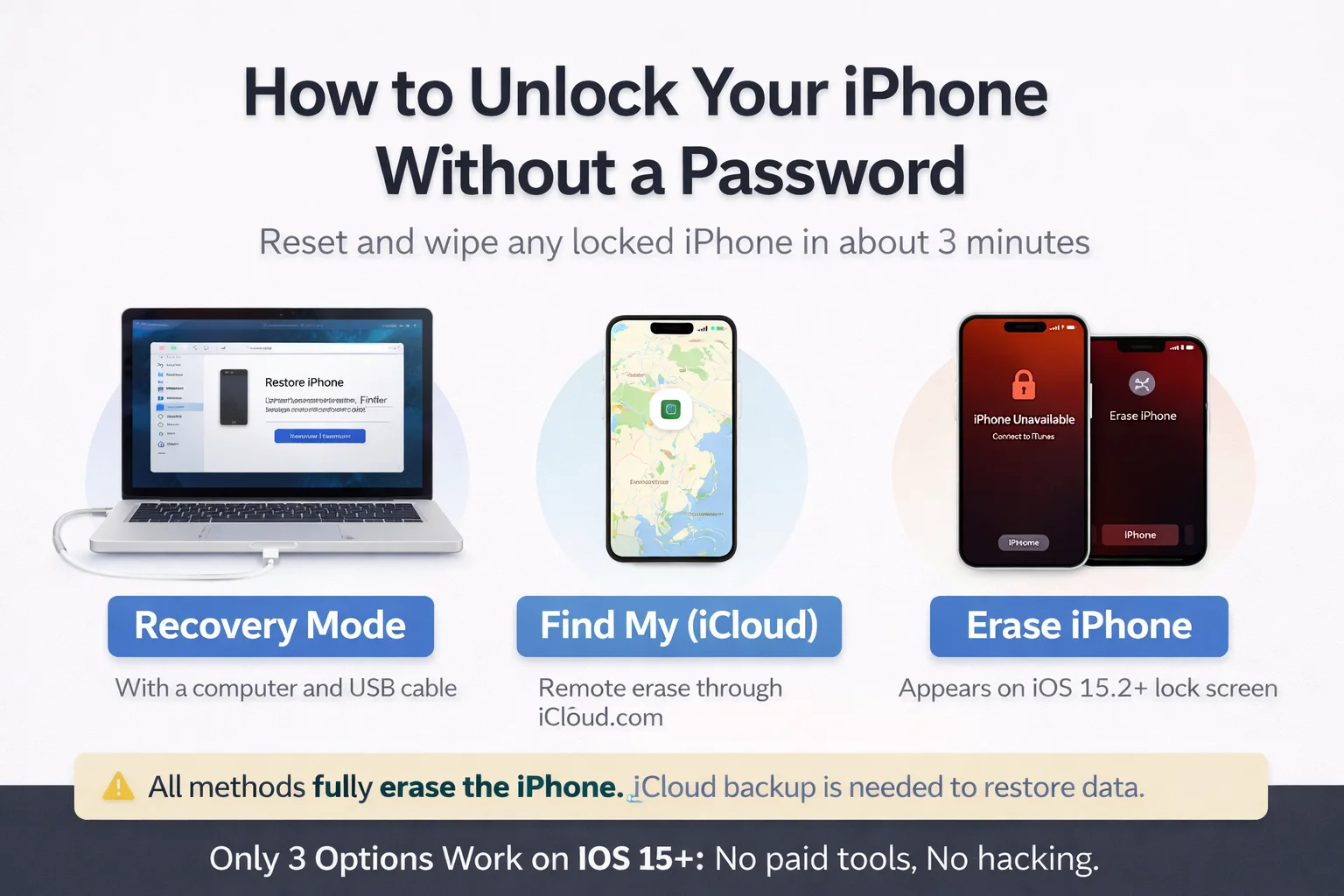
Before you begin: Every method below fully erases the iPhone. You cannot recover your data after a reset unless you have a prior iCloud or iTunes backup. If there is any chance your last iCloud backup is recent, confirm that first by checking iCloud.com.
Why You Can’t Just Bypass The Passcode
Apple’s Secure Enclave — the dedicated security chip inside every iPhone since the 5s — makes it technically infeasible to read the passcode from the outside. This is not just a software lock. It is hardware-enforced encryption tied to the device unique ID.
When you enter the wrong passcode repeatedly, the phone enforces escalating lockout timers: 1 minute after 5 wrong attempts, up to an hour after 9, and a complete disable after 10. iOS 15.2 and later go further, showing an “Erase iPhone” option directly on the lock screen.
Any tool claiming to bypass or unlock without erasing is either lying, exploiting an old vulnerability patched years ago, or trying to install malware. I have tested several of the paid tools that rank for this topic. None worked on any device running iOS 15 or later. Stick to Apple official paths.
Method Comparison
| Method | Best For | Difficulty |
|---|---|---|
| Recovery Mode | Any iPhone, no internet needed, requires computer | Moderate |
| iCloud / Find My | iPhone is online, remote erase from browser | Easy |
| Erase iPhone (on device) | iOS 15.2+, appears on lock screen after failed attempts | Easy |
Method 1: Recovery Mode With iTunes Or Finder
Recovery Mode is the most reliable option. It works regardless of whether Find My is enabled, whether the phone is online, or how many times you have tried the passcode. The tradeoff is that you need a computer.
What you need: A Mac running macOS Catalina (10.15) or later uses Finder. Earlier macOS or any Windows PC uses iTunes. Make sure iTunes is updated to version 12.8 or later before starting.
Steps for iPhone 8, SE (2nd/3rd gen), or later (Face ID and newer Touch ID models)
Step 1: Disconnect the USB cable. The phone should be unplugged. Power it off completely using the side button plus volume button combination.
Step 2: Enter Recovery Mode. Press and hold the side button while you plug the lightning or USB-C cable into the phone. Keep holding the side button until you see the Recovery Mode screen (a computer icon with a cable).
Step 3: Open Finder or iTunes on your computer. Your iPhone should appear in the sidebar (Finder) or at the top of the window (iTunes). If it does not appear within 30 seconds, disconnect and repeat step 2.
Step 4: Click Restore. A dialog box will appear offering Update or Restore. Click Restore. This erases the phone and installs the latest iOS version. The update option will not remove the passcode.
Step 5: Keep the phone plugged in. The restore process downloads the latest iOS firmware and can take 10 to 25 minutes depending on your internet speed. Do not unplug the phone during this step.
Step 6: Set up the iPhone. Once complete, the phone restarts to the Hello setup screen. Sign in with your Apple ID to disable Activation Lock. If you do not know the Apple ID, the phone cannot be used.
For iPhone 7 and 7 Plus
Hold the volume down button (not side button) while connecting the cable to enter Recovery Mode. All other steps are identical.
For iPhone 6s, SE (1st gen), or earlier
Hold the Home button while connecting the cable. Release when the Recovery Mode screen appears.
Method 2: Erase Via iCloud / Find My
If the locked iPhone has been online at any point after it was last used, you can erase it remotely through iCloud. This takes about two minutes and requires no physical access to a computer.
The requirement is that Find My must have been enabled on the device before it was locked. In my experience, this is the case for the vast majority of modern iPhones. Apple enables it by default during setup, and most users never turn it off.
Step 1: Go to icloud.com/find on any browser. Sign in with the Apple ID that was used on the locked iPhone. This is non-negotiable. You must have access to the linked Apple ID.
Step 2: Select the device. Click All Devices at the top, then select the iPhone you want to erase. If it does not appear, it was never linked to this Apple ID.
Step 3: Click Erase iPhone. Confirm when prompted. If the phone is online, the erase begins immediately. If it is offline, the command queues and executes the next time the device connects to a network.
Step 4: Set up with the same Apple ID. After the erase completes, go through the setup process on the device. Sign in with the same Apple ID to restore from a backup if one exists.
Best for: This is the fastest method if the phone is online and Find My was enabled. You can complete the entire process from a phone or tablet. No computer needed.
Method 3: Built-In Erase iPhone On The Lock Screen
Apple quietly added this feature in iOS 15.2, and most people do not know it exists. If your iPhone has been disabled after too many wrong passcode attempts, you may see a small Erase iPhone link at the bottom of the lock screen.
Tapping it prompts you to enter your Apple ID password, then erases the device on the spot. No computer needed. No browser needed. I found this particularly useful for iPhones that are in Airplane Mode or have no SIM card, where the iCloud method would not fire immediately.
Step 1: Look for Erase iPhone at the bottom of the lock screen. This appears after multiple failed attempts. You must be running iOS 15.2 or later for this option to show. It may also appear on the iPhone Unavailable or Security Lockout screen.
Step 2: Tap Erase iPhone and confirm. You will see a confirmation screen explaining that all data will be deleted. Tap to confirm.
Step 3: Enter your Apple ID password. iOS requires this to disable Activation Lock as part of the erase. Without the correct Apple ID, the erase will proceed but the phone will be locked at the Activation Lock screen afterward.
Note: This option only appears on iOS 15.2 and later. If you see “iPhone is Disabled — Connect to iTunes” without an Erase option, use Method 1 instead.
What Happens After The Reset — And How To Restore Your Data
Every reset brings the iPhone back to factory state. No apps, no settings, no messages. The first screen you see will be Hello in multiple languages. From here, you have two paths.
If you have an iCloud backup: During setup, choose Restore from iCloud Backup. Sign in with your Apple ID and select the most recent backup. Apps, photos, contacts, and most settings will restore over the next 15 to 60 minutes depending on backup size and connection speed.
If you have an iTunes or Finder backup: Choose Restore from Mac or PC during setup, connect to the computer you used for backups, and select the most recent local backup in Finder or iTunes.
If you have no backup: Set up as a new iPhone. Contacts may be recoverable if they were synced to iCloud or Google before the reset. Check those accounts after setup. Photos stored only on the device are gone permanently.
Activation Lock — the step people miss: If the iPhone was linked to an Apple ID you do not have the password for, it will display the Activation Lock screen after the reset. The device cannot be used past this point without the original Apple ID and password. No third-party tool can bypass Activation Lock on modern iOS. This is working as intended to deter theft.
Common Mistakes, Myths, And Bad Advice
| Claim / Action | Reality | Works? |
|---|---|---|
| Siri can bypass the passcode | This was a real exploit in 2013-2016. Apple patched it years ago. It does not work on any current iOS version. | No |
| Paid iPhone unlock tools online | None tested worked on iOS 15+. Many are scams or install malware. Apple Secure Enclave makes this hardware-impossible without the key. | No |
| DFU Mode is different from Recovery Mode | DFU mode is a deeper reset that bypasses the bootloader. It produces the same outcome — a full erase — and is only needed if Recovery Mode fails due to a corrupted OS. | Niche use |
| Removing the SIM card to bypass | The SIM has nothing to do with the passcode or Activation Lock. Removing it does not help. | No |
| Waiting out the lockout timer | After 10 wrong attempts the phone is disabled. There is no more waiting. The timer only applies during the 1 to 6 attempt range. | No |
| Contacting Apple Support to unlock | Apple Support cannot bypass passcodes. This is by design. They can help guide you through Recovery Mode but cannot unlock the device remotely without full ID verification and proof of purchase. | Limited |
One myth that keeps circulating on YouTube: set the date to January 1, 1970. This was a battery brick exploit from 2016, not an unlock method. Apple patched it in the same year it surfaced. If you see this advice anywhere, the source is outdated.
Frequently Asked Questions
Can I reset my iPhone without a computer?
Yes. Two methods work without a computer. Use iCloud Find My feature from any browser to remotely erase the device, or use the Erase iPhone option on the lock screen (requires iOS 15.2+). Both require your Apple ID password to complete setup afterward.
Will resetting remove Activation Lock?
No. Activation Lock is tied to the Apple ID linked to the device, not to the passcode. After a reset, you will be asked for the Apple ID and password that was signed in before the erase. Without that, the phone cannot be activated. This is Apple anti-theft system working correctly.
What if my iPhone does not appear in iTunes or Finder?
First, try a different USB cable. Most connection failures are a faulty cable, not a software problem. Then try a different USB port. Ensure iTunes is updated. If the phone still does not appear, try entering DFU mode. The process is similar to Recovery Mode but with a slightly different button sequence depending on model.
Can I reset an iPhone I bought second-hand if it is locked?
You can erase it, but you cannot use it if the previous owner Apple ID is still linked (Activation Lock). Contact the seller and ask them to remove the device from their iCloud account at icloud.com/find before handing it over. Apple will not override this without legal documentation.
How long does the reset process take?
The Recovery Mode method takes 10 to 25 minutes depending on internet speed (it downloads the latest iOS firmware). The iCloud method typically takes 2 to 5 minutes for the erase command, then an additional 15 to 60 minutes to restore from backup. The on-device erase takes about 2 minutes for the wipe itself.
I forgot my Apple ID password too. What now?
Go to iforgot.apple.com to recover your Apple ID password using a trusted phone number, trusted device, or recovery key. If none of those are available, Apple account recovery process can take several days of identity verification. Without Apple ID access, a reset phone cannot be activated.
Does a reset delete everything permanently?
Yes. A factory reset overwrites the encryption key, making all on-device data cryptographically unrecoverable, even with forensic tools. The only way to recover data afterward is from an iCloud or iTunes backup made before the reset. If no backup exists, the data is gone.
What iOS version do I need for the lock screen Erase iPhone option?
iOS 15.2 or later. If your iPhone is running an older version and you have never connected it to a computer for updates, this option will not appear. In that case, use Recovery Mode with iTunes or Finder instead. It works on all iOS versions.
Conclusion
There are exactly three legitimate ways to reset an iPhone without a password: Recovery Mode, iCloud Find My, and the lock screen Erase option on iOS 15.2+. Every other method you will find on YouTube or in a paid tool either does not work on modern iOS or is a scam.
The fastest path: if Find My was on and the phone is online, use iCloud. Takes three minutes. If not, Recovery Mode via iTunes or Finder handles every other scenario reliably.
The one thing that stops people is Activation Lock. Know your Apple ID and password before you start. If you are dealing with a second-hand phone where that information is not available, contact the seller before attempting a reset.
Action step: Identify which method matches your situation. If you have a computer, use Recovery Mode. If the phone is online and Find My was enabled, use iCloud. If you see Erase iPhone on the lock screen, tap it and enter your Apple ID password.
Discover useful tips, tricks, and solutions to your daily challenges—dive into our content.