
Most people download three or four photo editors before finding one they actually use. That wastes time, storage, and patience.
I’ve spent three years testing photo editing tools across iOS, Android, Windows, macOS, and browser platforms — from basic crop-and-filter apps to tools that compete with paid software costing $50/month. Most apps aren’t worth the storage space. Seven consistently are.
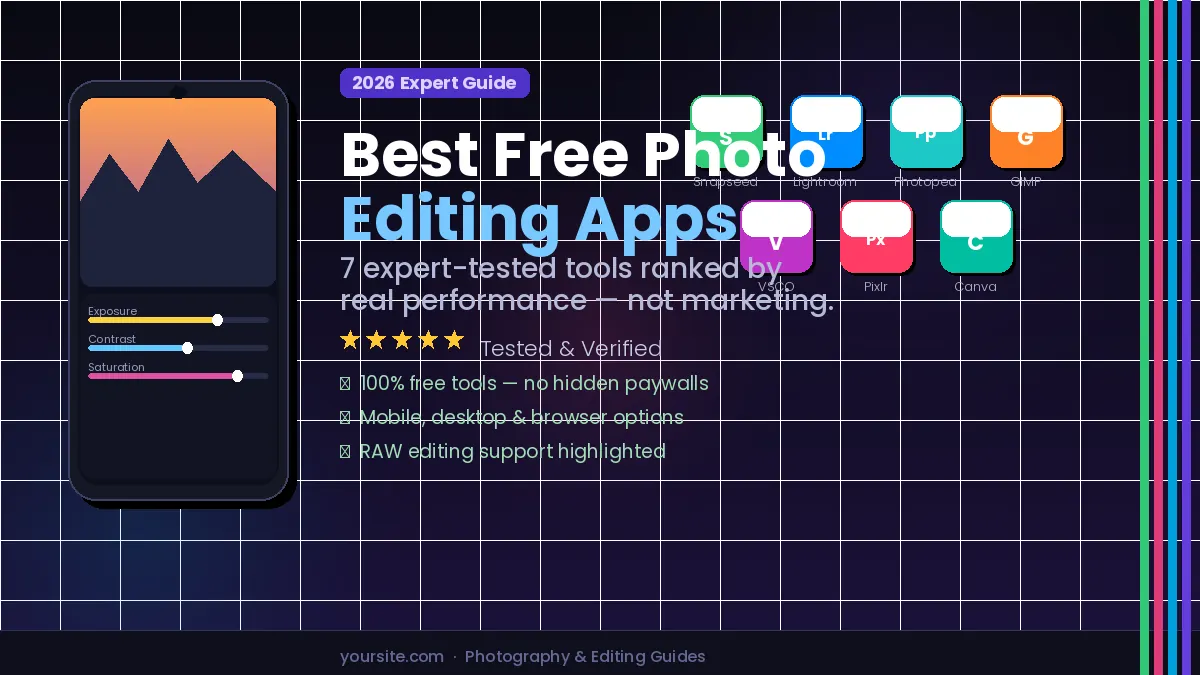
This guide ranks the best free photo editing apps for 2026 by real-world performance: what each app actually does for free, what it hides behind a paywall, and exactly who each one is built for. Whether you shoot RAW on a mirrorless camera, edit portraits on your phone, or just want better travel photos without a subscription, the right tool is in this list.
What Actually Makes a Free Photo Editing App Worth Using
The biggest trap in “free” software: apps that put every useful tool behind a paywall after you’ve already invested time learning them. I’ve been burned by this repeatedly.
Before recommending any app, I run it through four tests:
Core tools must be free. Exposure, contrast, white balance, color grading, crop, and basic retouching. If these cost money, the app isn’t a free editor — it’s a free demo.
Export at full resolution. Several apps silently compress exports unless you pay. I tested every tool on this list by exporting a 20-megapixel photo and comparing the output file size to the original. Apps that compress without disclosure are off the list.
RAW support where it matters. Serious photographers shoot in RAW. For desktop tools, RAW support is expected. On mobile, only a handful of apps handle DNG files — I note which ones do.
Stability of the free tier. Apps that launch free and progressively move features behind paywalls lose trust fast. VSCO’s 2023 restructuring is the most prominent recent example. I flag these situations directly.
According to Statista, approximately 1.72 trillion photos were taken globally in 2024. The demand for capable, accessible editing tools has created a genuinely competitive free software market — which is good news for anyone unwilling to pay Adobe’s subscription fees.
The 7 Best Free Photo Editing Apps Ranked
1. Snapseed — Best Overall Free Mobile Editor
Platform: iOS, Android | Skill level: Beginner to Advanced | Cost: 100% free, no in-app purchases
Snapseed is the editor I recommend first to anyone who asks. Google acquired it in 2012 and has kept it completely free with zero in-app purchases — no premium filters, no export limits, nothing gated. That’s increasingly rare.
In my testing, two tools separate Snapseed from every other mobile editor: Selective Adjust and Stacks.
Selective Adjust lets you pin a point anywhere on a photo and adjust brightness, contrast, and saturation only for that region. I’ve used it to darken an overexposed sky without touching a subject’s face, and to lift shadows from a backlit portrait while keeping the background as-is. The precision rivals desktop masking tools.
Stacks is Snapseed’s non-destructive editing history. Every edit is saved as a layer you can revisit, tweak, or delete without starting over. Most free mobile apps don’t offer this at all.
What you get for free:
- 29 tools and filters, all unlocked
- RAW (DNG) file support
- Non-destructive editing via Stacks
- Selective masking with brush and radial tools
- Healing tool for object removal
Limitation: Mobile only. There’s no desktop or browser version. If you primarily edit on a laptop, skip to option 3 or 4. On a sluggish Android phone, Snapseed still runs smoothly — its footprint is genuinely small compared to Lightroom.
The Healing tool — Snapseed’s version of content-aware fill — handles simple backgrounds well. It struggles with complex textures like brick walls or dense foliage, but for removing people from a background or cleaning up dust spots, it’s reliable enough for most situations.
2. Adobe Lightroom Mobile — Best for RAW Files and Color Work
Platform: iOS, Android, Windows, macOS | Skill level: Intermediate | Cost: Free tier available
Adobe’s free tier is more capable than most people realize — and more limited than Adobe’s marketing suggests.
The free version includes Lightroom’s full core editing engine: exposure, contrast, highlights, shadows, whites, blacks, tone curves, HSL sliders, split toning, and the crop tool. That’s the same fundamental engine powering the paid desktop version. For RAW files specifically, Lightroom Mobile’s color science is genuinely class-leading on mobile.
I regularly edit DNG files from a Sony mirrorless camera on an iPhone using only the free tier. The color accuracy and tonal control are noticeably better than Snapseed for technical photography work, particularly for preserving skin tones in portrait editing.
What’s free:
- Full RAW support across hundreds of camera models
- Complete exposure and color grading suite
- Tone curves and HSL adjustments
- Preset creation and application (you can build your own)
- Up to 2GB cloud sync across devices
What costs money: Adobe’s AI-powered subject and sky masking, premium preset packs, expanded cloud storage (beyond 2GB), and advanced geometry correction tools.
The AI masking tools that are paywalled are genuinely good — but the manual brush and gradient tools in the free tier are capable substitutes if you’re willing to spend an extra two minutes per image.
One practical warning: Adobe will remind you constantly through in-app prompts that you’re using the free version. It’s not aggressive, but it’s persistent.
3. Photopea — Best Photoshop Alternative (Browser)
Platform: Any browser | Skill level: Intermediate to Advanced | Cost: Free, ad-supported
If you need Photoshop-level functionality without paying $54.99/month for Creative Cloud, Photopea is the answer — the same “free alternative to a paid suite” model that works for Office apps applies here. It runs entirely in a browser — no download, no account, no installation. You navigate to photopea.com and start editing.
The interface is a near-exact replica of Photoshop’s layout. If you’ve used Photoshop before, your muscle memory transfers immediately. If you haven’t, you’ll find comprehensive documentation and a strong community because the interface mirrors Photoshop tutorials across the internet.
In my testing, I’ve used Photopea for complex layer compositing, frequency separation retouching (a technique for smoothing skin while preserving texture), channel-based selections, and multi-layer text effects. Every workflow that doesn’t require Photoshop-exclusive plugins works here.
What you get for free:
- Full layer and mask system
- Native PSD, XCF, Sketch, and AI file support
- Adjustment layers (curves, levels, hue/saturation, etc.)
- Smart objects and clipping masks
- Comprehensive filter library
Trade-off: The free version is ad-supported. Ads appear in the corner of the interface — they’re non-intrusive and easy to ignore, but they exist. Photopea reports over 10 million monthly active users, which reflects how functional the free version is in practice.
One strong use case: opening client PSD files without owning Photoshop. Photopea handles them reliably, including smart objects and layer effects, making it useful even in professional contexts where you only occasionally need to edit layered files.
4. GIMP — Best Full-Power Free Desktop Editor
Platform: Windows, macOS, Linux | Skill level: Advanced | Cost: Free, open-source**
GIMP has been free and open-source since 1996. It is the deepest free desktop image editor available — full layer support, advanced selection tools, custom brush engine, batch processing via Script-Fu, and an extensive plugin ecosystem.
The honest caveat every review should give you: GIMP has a steep learning curve and a user interface that feels dated compared to commercial alternatives. The non-standard layout has frustrated photographers for 30 years. If you expect Photoshop’s workflow, the first few hours with GIMP will feel awkward.
That said, I found that once you invest 10–15 hours learning GIMP’s specific approach — particularly the layer blend modes, the Script-Fu console, and the Paths tool — you have access to a professional-grade toolkit that costs nothing and will never have a subscription renewal.
GIMP excels at:
- Batch processing (resize, export, rename hundreds of files via automation)
- Precision retouching with the Clone and Heal tools
- 16-bit color depth for print-quality work
- Plugin support, including G’MIC for extensive filter effects
- RAW editing via the UFRAW or darktable-gimp plugin
Best for: Power users, photographers doing serious desktop editing, and anyone on Linux who doesn’t have macOS or Windows app options.
5. VSCO — Best for Film-Style Presets
Platform: iOS, Android | Skill level: Beginner | Cost: Free tier with paid VSCO+ option**
VSCO built its reputation on presets that convincingly simulate analog film stocks — the warm, slightly faded aesthetic that defined a generation of photography. The free tier still delivers that core value.
VSCO’s 2023 restructuring moved several editing tools to its paid VSCO+ subscription, which frustrated long-time users. In my testing, the free tier still includes basic exposure and color sliders, around 10 preset filters (primarily the A-series and C-series, which are the best ones anyway), and a clean, distraction-free editing interface.
I use VSCO primarily for its batch consistency — applying a single preset across 20–30 travel photos for a unified look before posting to social media. For that specific workflow, it’s faster than manually grading each image in Lightroom.
What’s free: A-series and C-series presets, basic editing sliders, clean mobile UI What costs money: Advanced tools like HSL, grain control, and the newer M/S-series film simulations
Best for: Social media content creators who want a consistent, filmic aesthetic quickly without manual color grading.
6. Pixlr E — Best Browser Editor for Beginners
Platform: Browser | Skill level: Beginner to Intermediate | Cost: Free, ad-supported**
Pixlr offers two browser-based apps — Pixlr X (simplified) and Pixlr E (full features). Pixlr E is the one worth using.
It has a layer system, selection tools, a healing brush, and a filter library. Compared to Photopea, Pixlr E loads faster and has a cleaner interface, which makes it a better entry point for people who have never used layer-based editing. The learning curve is gentler without the Photoshop-clone layout that can be disorienting for new users.
Limitation: No native PSD support in the free tier, fewer advanced tools than Photopea, and the free version has usage caps on AI-powered features. For anyone who needs to work with Photoshop files regularly, Photopea is the stronger choice.
Best for: Beginners doing browser-based editing who want a clean, non-overwhelming interface.
7. Canva Free Tier — Best for Designed Social Content
Platform: Browser, iOS, Android | Skill level: Beginner | Cost: Free tier with Canva Pro option**
Canva is primarily a graphic design tool, and its photo editing capabilities reflect that. You won’t use Canva to do precision retouching or RAW editing. What Canva does exceptionally well is combine photo editing with templated design — adding text, graphics, frames, and branded elements to images quickly.
The free tier includes filters, basic adjustments, text tools, a large template library, and limited background removal. For creating social media posts, YouTube thumbnails, presentation graphics, or marketing materials, nothing matches Canva’s free template ecosystem.
Best for: Non-photographers, marketers, and content creators who need designed, polished images rather than technically edited photographs.
Mobile vs. Desktop vs. Browser: Which Platform Fits Your Workflow
The right platform is almost entirely determined by where your source photos live.
You shoot on a smartphone: Snapseed or Lightroom Mobile. Editing where you shoot removes the friction of file transfers. Both handle RAW files from modern iPhone and Android flagships directly — just keep an eye on storage, since DNG files run 20–40MB each and stack up quickly.
You’re on a laptop without installed software: Photopea or Pixlr E. Browser tools require no installation, work on Chromebooks, and start instantly. Photopea handles advanced work; Pixlr E works better for beginners.
You do serious desktop work: GIMP. It’s the only free option with the depth to match paid desktop software for technical photography, print work, or complex compositing.
You need a hybrid workflow: Lightroom Mobile (free tier) for capture-side editing on iOS or Android, then Photopea in a browser for anything requiring layers or compositing. I’ve run this exact workflow for client work without paying for software.]
Common Mistakes When Picking a Free Photo Editor
Choosing based on App Store star ratings. App stores surface apps with strong review volume, not necessarily strong features. Several highly-rated editors are rated well because they’re easy — not because they’re capable of anything beyond basic filters.
Ignoring platform specifics. Snapseed is one of the best mobile editors available. It’s also mobile-only. If you search “best free photo editor” and download it expecting a desktop app, you’ll be immediately disappointed. Match the tool to your actual device before anything else.
Treating presets as a substitute for editing skills. Preset-heavy apps like VSCO produce fast results but limit your long-term growth. Learning to adjust exposure, white balance, and color grading manually in Lightroom or Snapseed will consistently outperform any preset — especially for photos taken in non-ideal lighting.
Skipping the export quality test. Some apps default to compressed or downsampled exports in their free tier. Before committing to any editor, test it: open a high-resolution original, make a minor edit, export at maximum quality, and compare the file size and sharpness to the source. This test has eliminated several apps I initially liked.
Assuming free means limited. Photopea, Snapseed, and GIMP contradict this assumption entirely. The constraint isn’t the software — it’s the time invested in learning it. Each of these tools can produce professional output when used correctly.
FAQs
What is the best free photo editing app for beginners?
Snapseed is the best starting point for most beginners. It’s entirely free with no in-app purchases, available on iOS and Android, and has an intuitive interface that doesn’t sacrifice real capability. The guided filters teach good editing principles while still being immediately usable.
Is there a free alternative to Adobe Photoshop in 2026?
Photopea is the closest free alternative to Photoshop currently available. It runs in any browser with no download required, opens and saves PSD files natively, and supports layers, masks, adjustment layers, and most core Photoshop workflows. GIMP is a strong desktop alternative for users who want an installed application.
Can I edit RAW photos without paying for software?
Yes. Adobe Lightroom Mobile’s free tier supports RAW editing on mobile, as does Snapseed (DNG format). On desktop, GIMP handles RAW files through the UFRAW or darktable-gimp plugin. Photopea supports RAW processing directly in the browser.
Which free photo editing app has the best filters and presets?
VSCO has the most aesthetically refined film-simulation presets, particularly for warm, analog-style looks. Snapseed’s filter library is more technically versatile — covering landscape enhancement, portrait retouching, vintage looks, and HDR effects across a wider range of subjects and lighting conditions.
Which free apps are safest from future paywalls?
Snapseed and GIMP are the most stable long-term. Snapseed is maintained by Google with no monetization layer; GIMP is open-source and community-developed. Adobe Lightroom’s free tier and VSCO’s free features have both changed in the past and could change again based on company decisions.
What’s the best free app for Instagram and social media editing?
Lightroom Mobile’s free tier for color grading and RAW processing, combined with Canva’s free tier for adding text, graphics, and templates. VSCO works well for creators who want a consistent filmic aesthetic applied consistently across a content series.
Does Photopea require an account or subscription to use?
No. Photopea is fully functional without creating an account or providing any payment information. Navigate to photopea.com and begin editing immediately. The free version is ad-supported; a paid plan ($9/month) removes ads but adds no editing features.
Can these apps handle professional-quality output?
Snapseed, Lightroom Mobile, Photopea, and GIMP all support full-resolution exports suitable for print, commercial use, and professional portfolios. The quality of the output depends on the editor’s skill, not the software’s capability.
Conclusion
The best free photo editing app is the one that matches your device, your workflow, and your level of commitment to learning it.
For most people: Snapseed for mobile, Photopea for browser-based work. These two cover the majority of editing needs without spending anything. For moving footage rather than stills, the same logic applies — pick one capable mobile video editor and learn it deeply.
If you shoot RAW files and care about color accuracy, add Lightroom Mobile’s free tier to your mobile workflow. For desktop power without a subscription, GIMP is the only free tool built to that standard.
Start with Snapseed this week. Open a recent photo, use the Selective Adjust tool to brighten just a face or darken just a sky, and compare it to anything you’ve edited before. That one feature alone demonstrates how wide the gap is between genuinely capable free software and the default tools most people settle for.
The software is free. The results depend entirely on how you use it
Turn curiosity into understanding—explore our curated reads and deepen your perspective.
